> ## Documentation Index
> Fetch the complete documentation index at: https://docs.usestash.com/llms.txt
> Use this file to discover all available pages before exploring further.
# Google Calendar
> Sync Google Calendar with Stash to find meetings, events, and schedules instantly with smart AI search.
When you connect Google Calendar to Stash, it gives teams visibility into the real-time availability of teammates who have expertise in specific issues. This makes it easier to know when the right people are free to help resolve problems or review code.
By connecting Google Calendar, Stash will:
* Show which teammates are available to answer questions or collaborate on a specific issue
* Reduce back-and-forth by making it clear who is reachable, avoiding delays in finding the right developers
## Connect Google Calendar
Each developer must connect their own Google Calendar to their personal Stash account using their Google credentials.
You connect Google Calendar under Connected Apps in the Settings menu.
* Go to **Settings → Connected Apps**
* Find **Google Calendar** in the list and click **Connect**
* Complete the authorization flow using your Google account
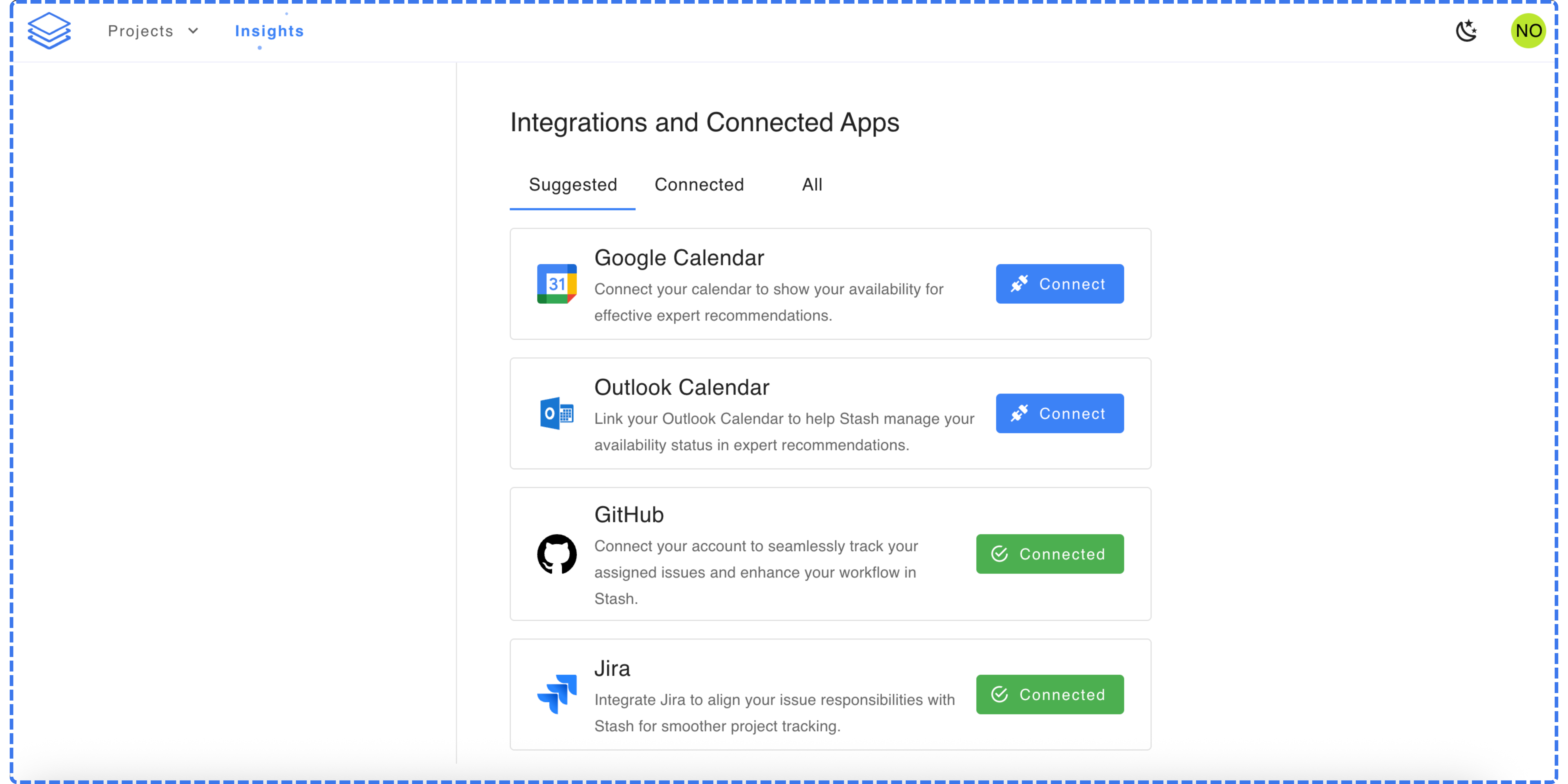 Once connected, Stash will start syncing availability data from your Google Calendar automatically.